A simpler way to review, select and manage your photos
Creating a beautiful photo book or album starts with choosing the right photos. With your feedback in mind, we’ve introduced a range of updates to our desktop Design Studio Photo Library, making it easier to review, select and manage your images before and during the design process.
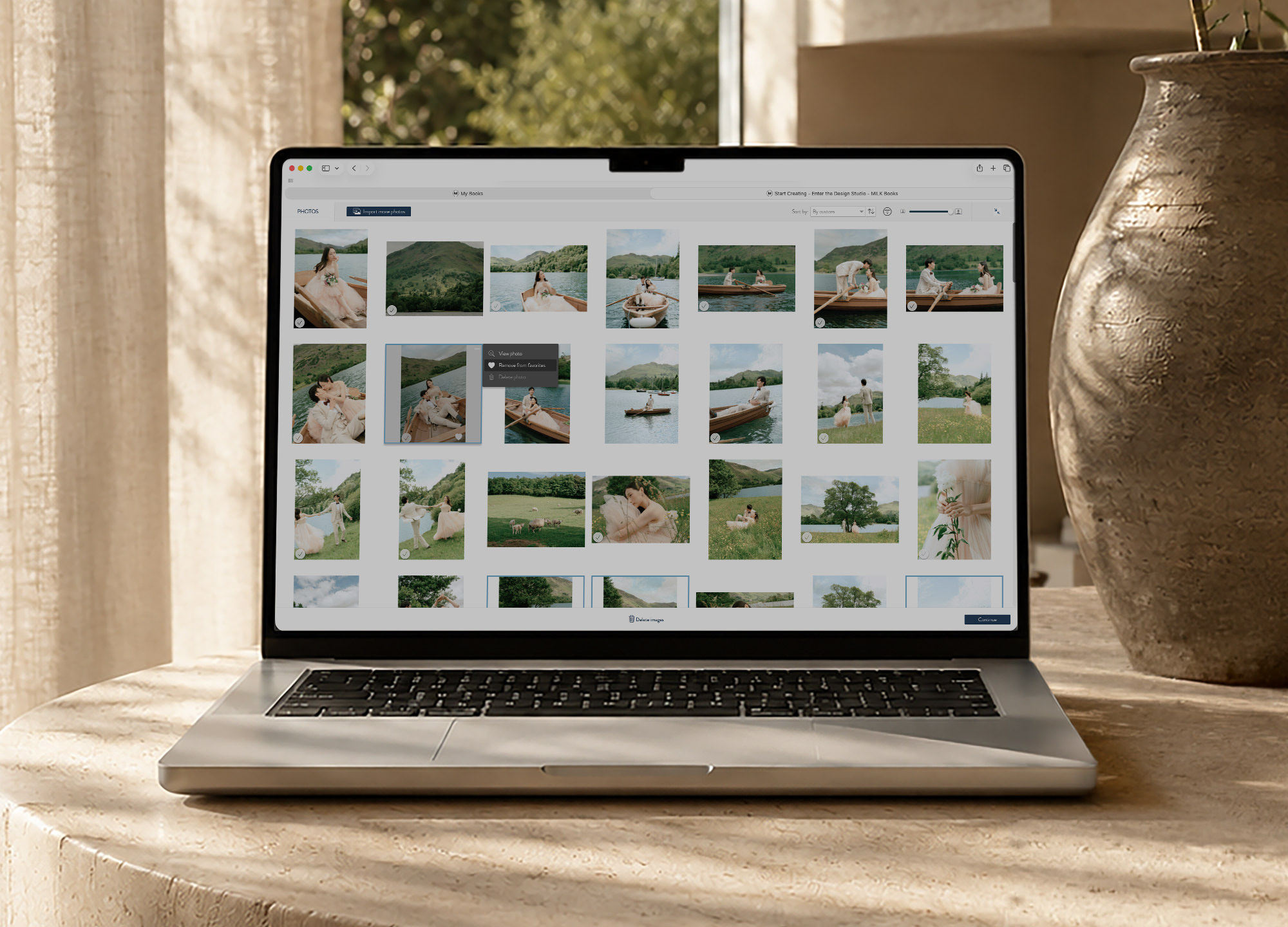
Photo credit: Jing W & Rebecca Chan
Save and filter your favorites
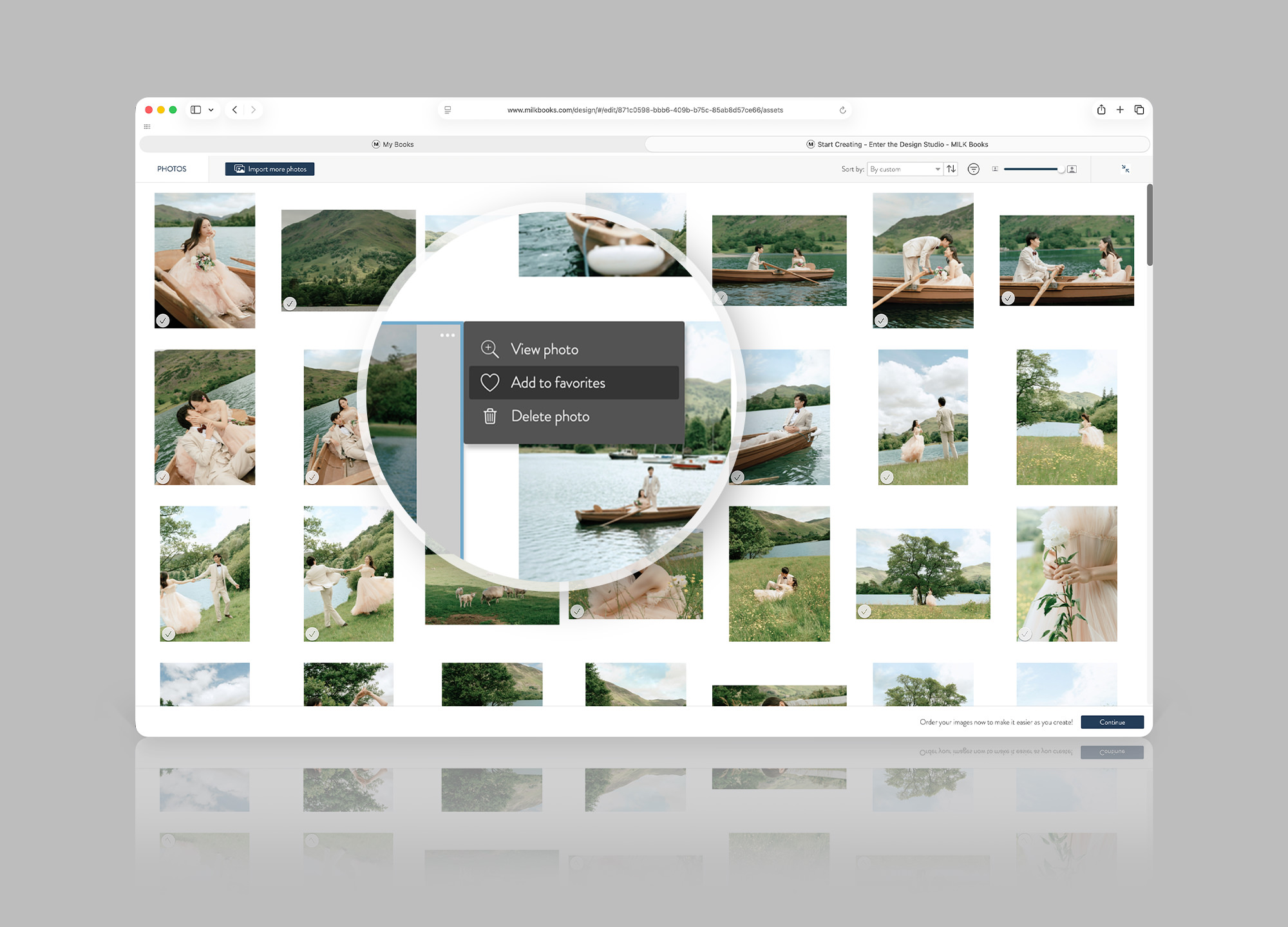
Photo credit: Jing W & Rebecca Chan
You can now add photos to your Favorites, giving you an easy way to create a shortlist of your most-loved moments as you work through your Photo Library. For large projects such as weddings, travel adventures or yearbooks, this can be especially helpful when sorting through hundreds of images.
Mark the photos you love as you go, then use the Favorites only filter whenever you want to focus on your strongest selections. It’s a simple way to bring your preferred images to the forefront while designing, without losing access to the rest of your Photo Library.
Get a closer look at your photos
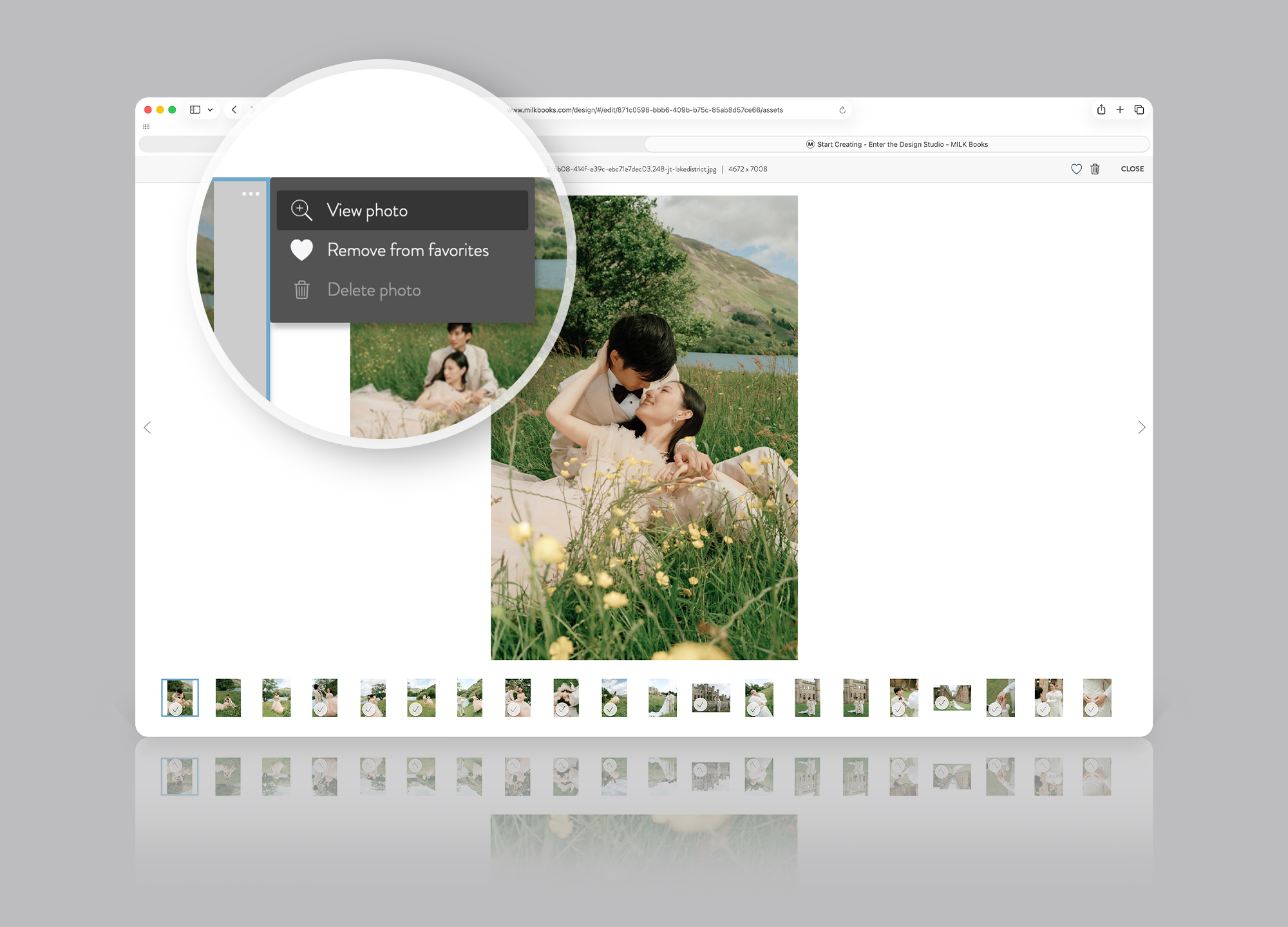
Photo credit: Jing W & Rebecca Chan
On desktop, you can now double-click any photo or select the three-dot menu and choose View photo to open an enlarged preview of your image.
The enlarged view gives you a clearer look at each image while keeping the rest of your uploads visible as thumbnails below. You can then navigate seamlessly left or right through your Photo Library, making it easy to compare similar shots without having to open and close each image individually.
This is especially useful when you’re choosing between near-duplicates, checking faces or expressions in a group photo, comparing small differences between several shots or reviewing details that would be too difficult to see from the thumbnail alone. For weddings, family events and professional photo galleries, where you may be working with many photos from the same moment, it makes finding the perfect photo much faster and easier.
Select multiple photos at once
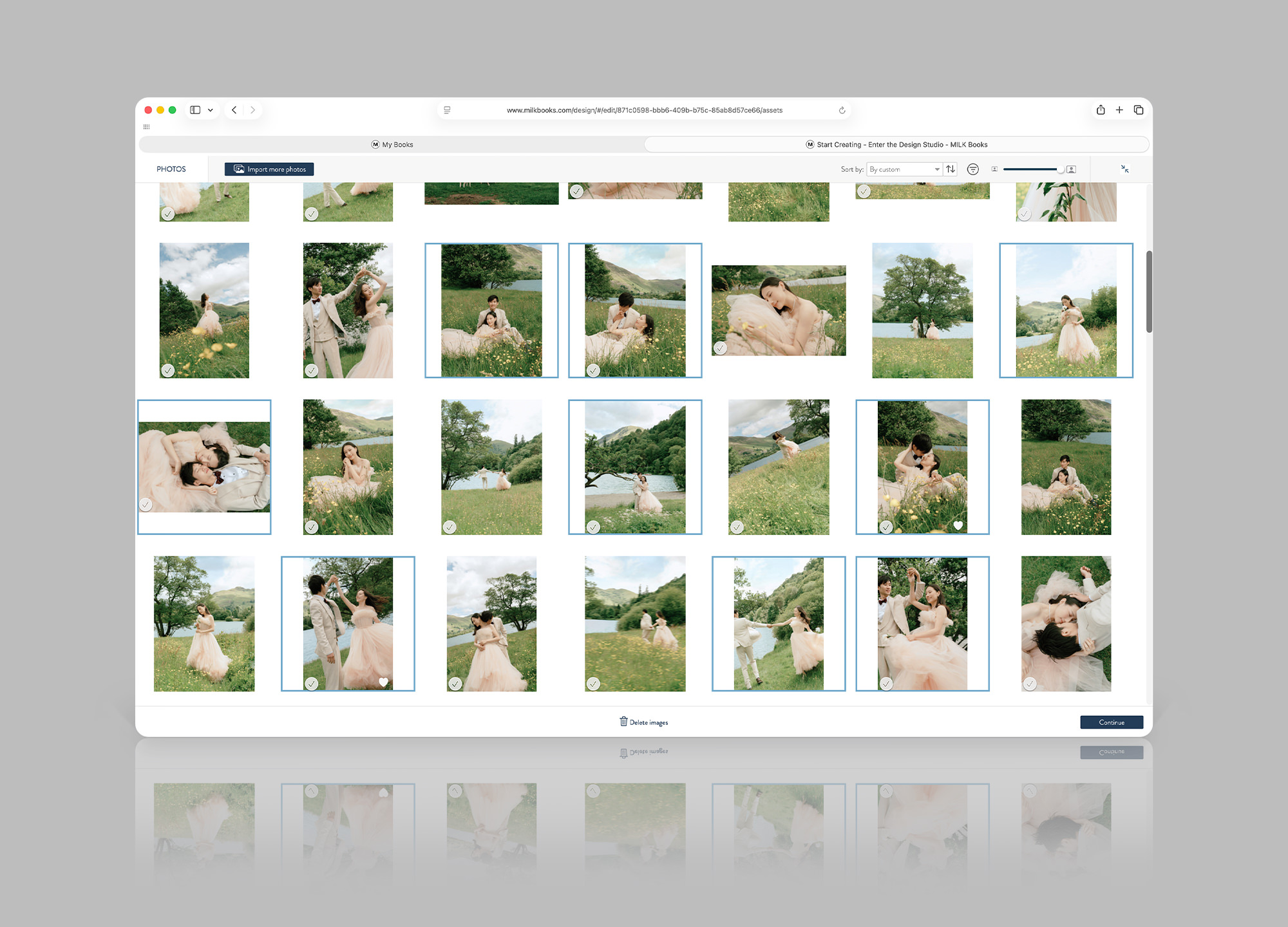
Photo credit: Jing W & Rebecca Chan
Select multiple photos at the same time to manage groups of images more efficiently within your Photo Library. Once selected, you can apply the same action across all chosen photos, whether that’s adding them to Favorites, deleting images you no longer need or opening them in View photo. This is a useful way to narrow down large uploads and work with groups of photos in fewer steps than before.
Display photo file names
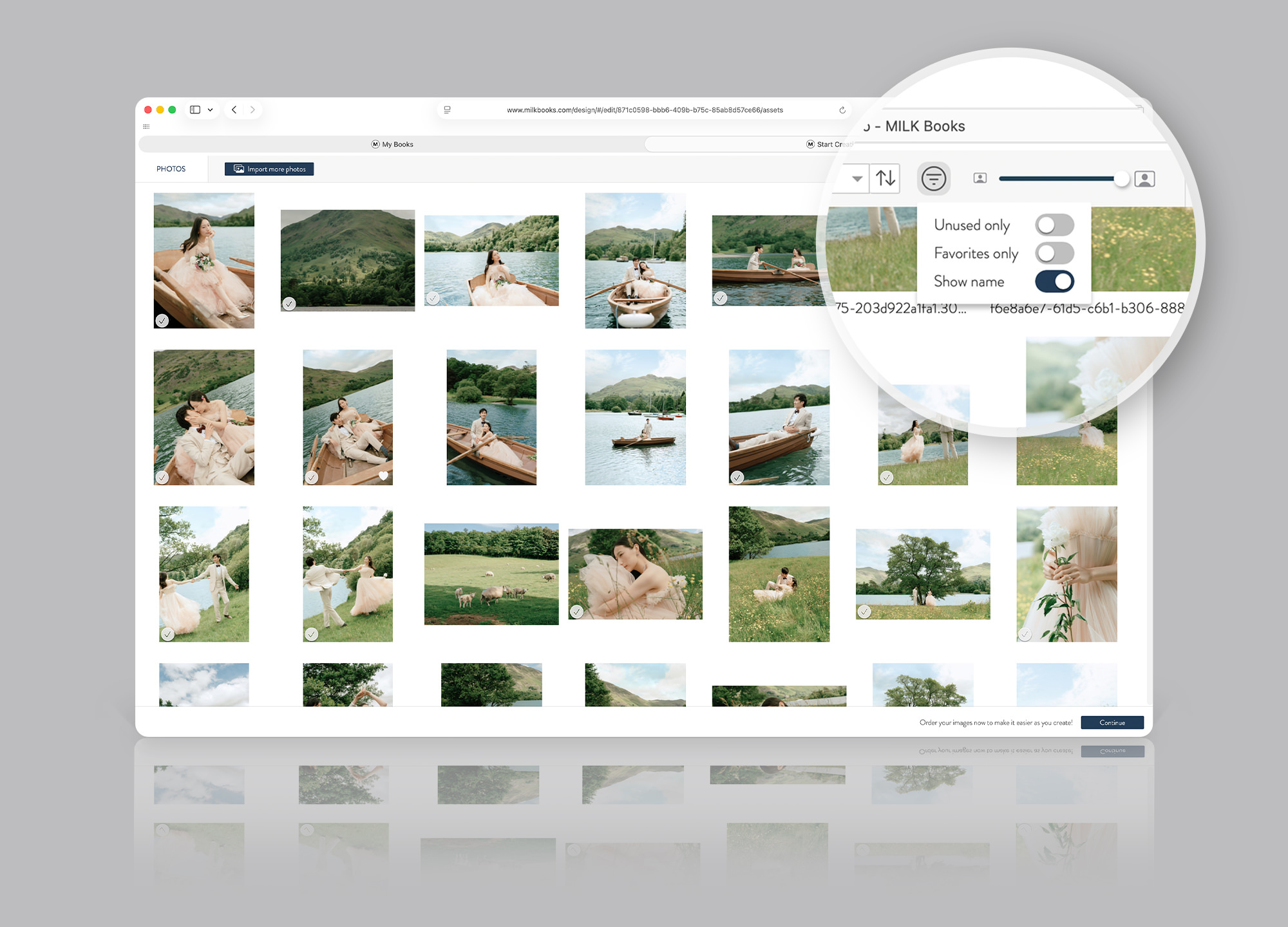
Photo credit: Jing W & Rebecca Chan
In the thumbnail view of your Photo Library, select Show name from the filter menu to display the file name beneath each image. When you open a photo in the enlarged preview, its file name is always shown.
This gives you another way to distinguish between similar photos, which can be useful for wedding galleries, professional photography or any project with many near-identical shots. You can also rename your files before uploading them if you want to control the order they appear in. For example, numbering photos consecutively gives each image a clear sequence, so when you sort by File name or use Autofill, your photos can follow that intended order more easily.
These updates are part of our ongoing work to make the MILK Design Studio as simple and intuitive as possible, giving you more control over your photos from the moment you import them through to the final stages of designing your project.
With more ways to preview, filter, select and manage your images, it’s easier to focus on the photos that matter most and bring your story together with confidence. Whether you’re creating a photo book filled with travel memories, a family yearbook or a photo album to preserve a milestone such as your wedding day, our new tools and features are designed to make the creation process smooth from start to finish.
Spend less time searching through your Photo Library and more time shaping a keepsake that feels considered, personal and entirely your own.